The first time you see a Flutter home screen assembled by an AI instead of by you, something clicks. You didn’t write Column(children: [...]). You described widgets, wrote a system prompt, and Gemini picked which widgets to render and in what order. The screen feels personal because the model composed it for the user sitting in front of it, right now, for this context.
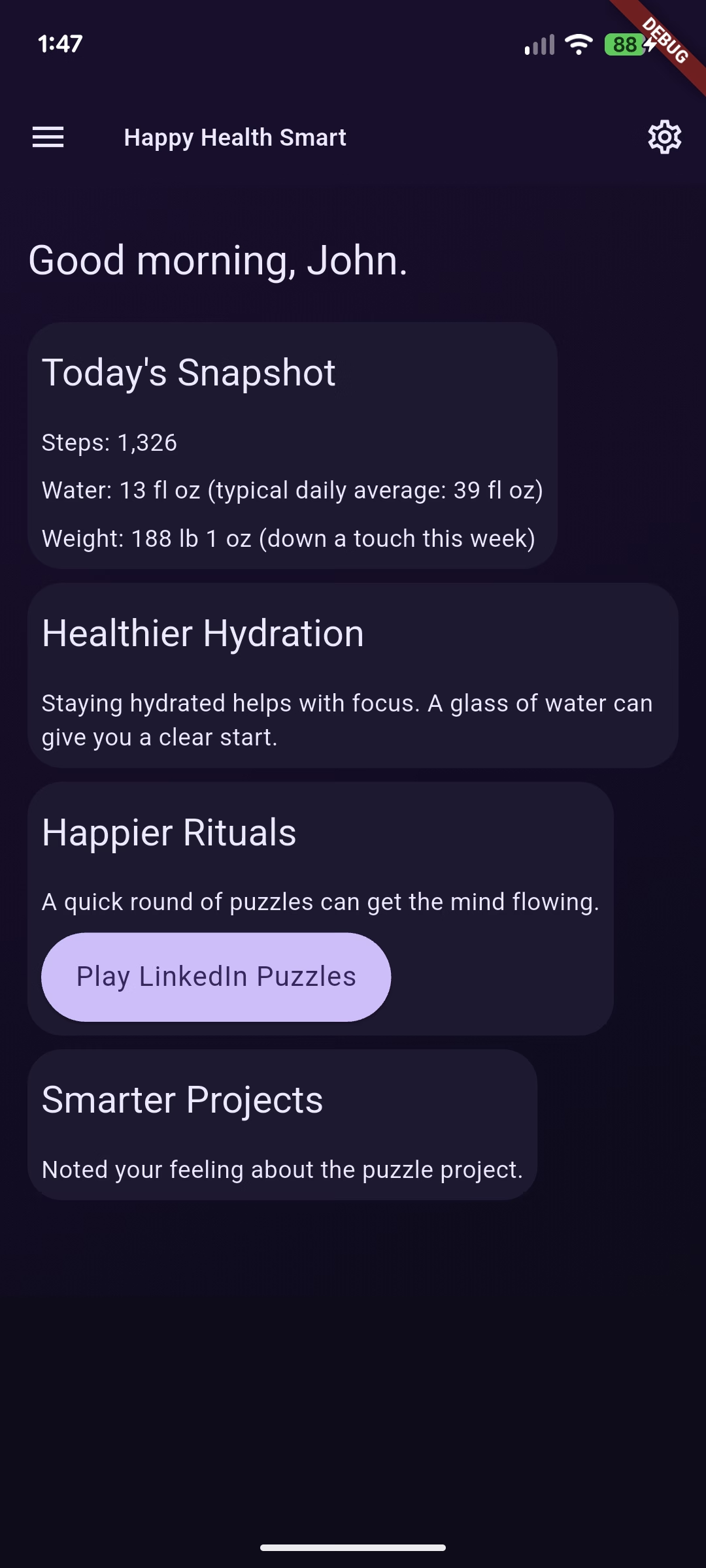
We built genui_demo as a working example: a small wellness app whose home screen Gemini composes on every refresh from a curated Flutter widget catalog. This post walks through the four pieces you need to stand up your own GenUI surface. Catalog, transport, surface, and interactions. Real code, from the repo.
We’ve covered the ideas and the architecture in earlier posts. This one is the tutorial.
What we’re building
genui_demo is a personal wellness app built around three pillars: happier, healthier, smarter. The home screen is not a static widget tree. On every pull-to-refresh, the app gathers the user’s health snapshot, daily rhythms, and preferences into a system prompt, hands that prompt and a widget catalog to Gemini, and renders whatever composition comes back.
The stack:
genui: ^0.8.0— catalog, surface, conversation, transportgoogle_generative_ai: ^0.4.7— Gemini clientflutter_bloc— state management around the GenUI serviceflutter_secure_storage— on-device API key
Everything runs through one service and one cubit. No Firebase, no backend. The Gemini API key lives on device.
A word on scope. This demo is built to help you see how GenUI works, not to be a reference architecture for production GenUI apps. The layering is deliberately light so each concept stays legible. If you want a full architectural breakdown with layered state, deferred navigation, and a bespoke widget catalog, read the GenUI wizard we built for GCN next.
Step 1: Define the catalog
The catalog is your vocabulary. Each entry tells Gemini “here is a widget you can render, here is its JSON schema, and here is how I’ll build it.” The SDK ships BasicCatalogItems with primitives like Text, Column, Button, and TextField. You add your own custom items on top.
Here’s the one custom item this demo ships. It’s a “wish card” Gemini renders when it wants to show something outside the catalog:
final featureRequestCatalogItem = CatalogItem(
  name: 'FeatureRequest',
  dataSchema: S.object(
    description:
        'A polite placeholder the model renders when it wants to show '
        'something this client does not yet support.',
    properties: {
      'title': S.string(description: 'Short label. 2-8 words.'),
      'rationale': S.string(description: '1-2 sentences. Optional.'),
      'proposedShape': S.string(description: 'One-line sketch. Optional.'),
      'pillar': S.string(
        description: 'Which pillar the wish serves. Optional.',
        enumValues: _pillars,
      ),
    },
    required: ['title'],
  ),
  widgetBuilder: (itemContext) {
    final data = _FeatureRequestData.fromMap(itemContext.data as JsonMap);
    return _FeatureRequestCard(data: data);
  },
  exampleData: [() => '''...'''],
);
Three things to notice.
First, the schema is the contract. json_schema_builder gives you a fluent DSL. Descriptions matter. Gemini reads them and uses them to decide when to render your widget, so be specific and concrete.
Second, widgetBuilder is plain Flutter. GenUI hands you typed data and you return a widget. The extension type _FeatureRequestData.fromMap is a lightweight adapter that typechecks the JSON without copying it.
Third, exampleData teaches by example. This is the single highest-leverage field in a catalog item. When Gemini is unsure how to use your component, it reaches for your examples.
The catalog itself composes the basic items, your custom items, and any extra system prompt rules:
abstract final class AppCatalog {
  AppCatalog._();

  static Catalog build() {
    final base = BasicCatalogItems.asCatalog();
    return base.copyWith(
      newItems: [featureRequestCatalogItem],
      systemPromptFragments: [
        ...base.systemPromptFragments,
        _customCatalogRules,
      ],
    );
  }
}
Prompt fragments are how you teach Gemini the rules for your catalog. When to reach for FeatureRequest. Which event names buttons can dispatch. Treat them as part of the API.
Step 2: Wire Gemini to a Conversation
The SDK’s Conversation object is transport-agnostic. It speaks in ChatMessages and expects JSON chunks back. GeminiGenUiService in this demo is the glue that turns google_generative_ai into something Conversation can drive:
class GeminiGenUiService {
  GeminiGenUiService({
    required String apiKey,
    required this.systemPrompt,
    required Catalog catalog,
    String modelId = 'gemini-3.5-flash',
    this.onInteraction,
  }) : _model = GenerativeModel(
          model: modelId,
          apiKey: apiKey,
          systemInstruction: Content.text(systemPrompt),
        ) {
    controller = SurfaceController(catalogs: [catalog]);
    transport = A2uiTransportAdapter(onSend: _handleSend);
    conversation = Conversation(
      controller: controller,
      transport: transport,
    );
  }
  // ...
}
Three collaborators show up here. SurfaceController owns the live surfaces and data models. A2uiTransportAdapter converts streaming text chunks into surface operations. Conversation is the high-level API the app talks to through sendRequest(message).
The _handleSend callback is where Gemini actually runs. The adapter hands you a ChatMessage. You feed it to generateContentStream. You pipe each chunk back with transport.addChunk(chunkText):
Future<void> _handleSend(ChatMessage message) async {
  // forward any UI interactions to onInteraction
  final userContent = Content.user([TextPart(message.text)]);
  _history.add(userContent);

  final responseStream = _model.generateContentStream(_history);

  final modelBuffer = StringBuffer();
  await for (final chunk in responseStream) {
    if (_disposed) break;
    final chunkText = chunk.text;
    if (chunkText == null || chunkText.isEmpty) continue;
    modelBuffer.write(chunkText);
    transport.addChunk(chunkText);
  }
  if (!_disposed) {
    _history.add(Content.model([TextPart(modelBuffer.toString())]));
  }
}
Streaming is first-class. Your user sees the dashboard render progressively, widget by widget, as Gemini’s JSON arrives. You get this by pushing chunks into the transport rather than waiting for the full response.
Step 3: Render the surface
Once the service is alive, ask for a composition and wait for a surface ID:
final surfaceCompleter = Completer<String>();
_eventsSub = service.conversation.events.listen((event) {
  if (event is ConversationSurfaceAdded) {
    _rebindDataPaths(service, event.surfaceId);
    if (!surfaceCompleter.isCompleted) {
      surfaceCompleter.complete(event.surfaceId);
    }
  }
});

unawaited(service.sendUserMessage(userMessage));
final surfaceId = await surfaceCompleter.future
    .timeout(const Duration(seconds: 45));
The SurfaceController emits ConversationSurfaceAdded once Gemini sends the first createSurface chunk. Handing that surface ID to a Surface widget is all you need to render:
Surface(controller: service.controller, surfaceId: surfaceId)Client-owned data paths
Reactive state is where GenUI earns its keep. DataModel lets your app and the model share a path tree. Gemini’s widgets read and write paths like /today/captures_count or /drafts/note, and your app binds Flutter streams to those same paths.
Here’s how the demo exposes a live counter of today’s captured notes to any widget Gemini renders:
void _rebindDataPaths(GeminiGenUiService service, String surfaceId) {
  _unbindDataPaths();
  final dataModel = service.controller.store.getDataModel(surfaceId);
  _unbindCaptures = dataModel.bindExternalState<int>(
    path: DataPath(DataPaths.todayCapturesCount),
    source: _liveData.todayCapturesCount,
  );
}
Any Text component Gemini renders with BoundString or BoundNumber on /today/captures_count now reflects the app’s live value. Rewrite the counter on disk, call _liveData.refresh(), and every widget bound to that path updates on the next frame.
The seed matters too. Before the first surface is composed, the app tells Gemini what paths exist and what values they currently hold:
JsonMap _buildClientDataModelSeed() {
  return <String, Object?>{
    'today': <String, Object?>{
      'captures_count': _liveData.todayCapturesCount.value,
    },
    'drafts': <String, Object?>{
      'note': '',
    },
  };
}
Gemini sees the path tree in the system prompt and can render widgets bound to any of it from turn one.
Step 4: Handle interactions
Buttons Gemini renders dispatch events back to your app. The demo listens through onInteraction:
GeminiGenUiService(
  apiKey: key,
  systemPrompt: systemPrompt,
  catalog: catalog,
  onInteraction: _handleInteraction,
)
_handleInteraction routes well-known event names to persistence code. Capturing a note into the event log. Recording an answered question. Marking a daily puzzle done. The constraint lives in the catalog’s system prompt fragment:
INTERACTION EVENT NAMES you can dispatch from Buttons:
- note_captured — TextField + submit Button capture pattern.
- answer_submitted — Slider / ChoicePicker + submit Button pattern.
- puzzle_played — "Mark done" button on a daily-puzzle card.
Any other event name you dispatch is passed through unchanged
and has NO local side effects.
Gemini now knows exactly which interaction names your app handles and what context payload each expects. This is the same principle as designing a REST API. A short, well-documented vocabulary beats a wide one.
Two more pieces finish the loop. First, the allowed operations policy. This demo lets Gemini create a surface once and then update it in place:
final prompt = PromptBuilder.custom(
  catalog: catalog,
  allowedOperations: SurfaceOperations.createAndUpdate(dataModel: false),
  systemPromptFragments: [...],
  clientDataModel: _buildClientDataModelSeed(),
);
dataModel: false keeps writes client-owned. Gemini can read paths but cannot rewrite them, which preserves a single source of truth for anything sensitive.
Second, the event subscription keeps listening after the first surface arrives. Follow-up turns from Gemini usually come in as ConversationComponentsUpdated events. The Surface widget handles those internally, so the cubit does not re-emit state. The UI just updates.
Inside the app: four inspectors
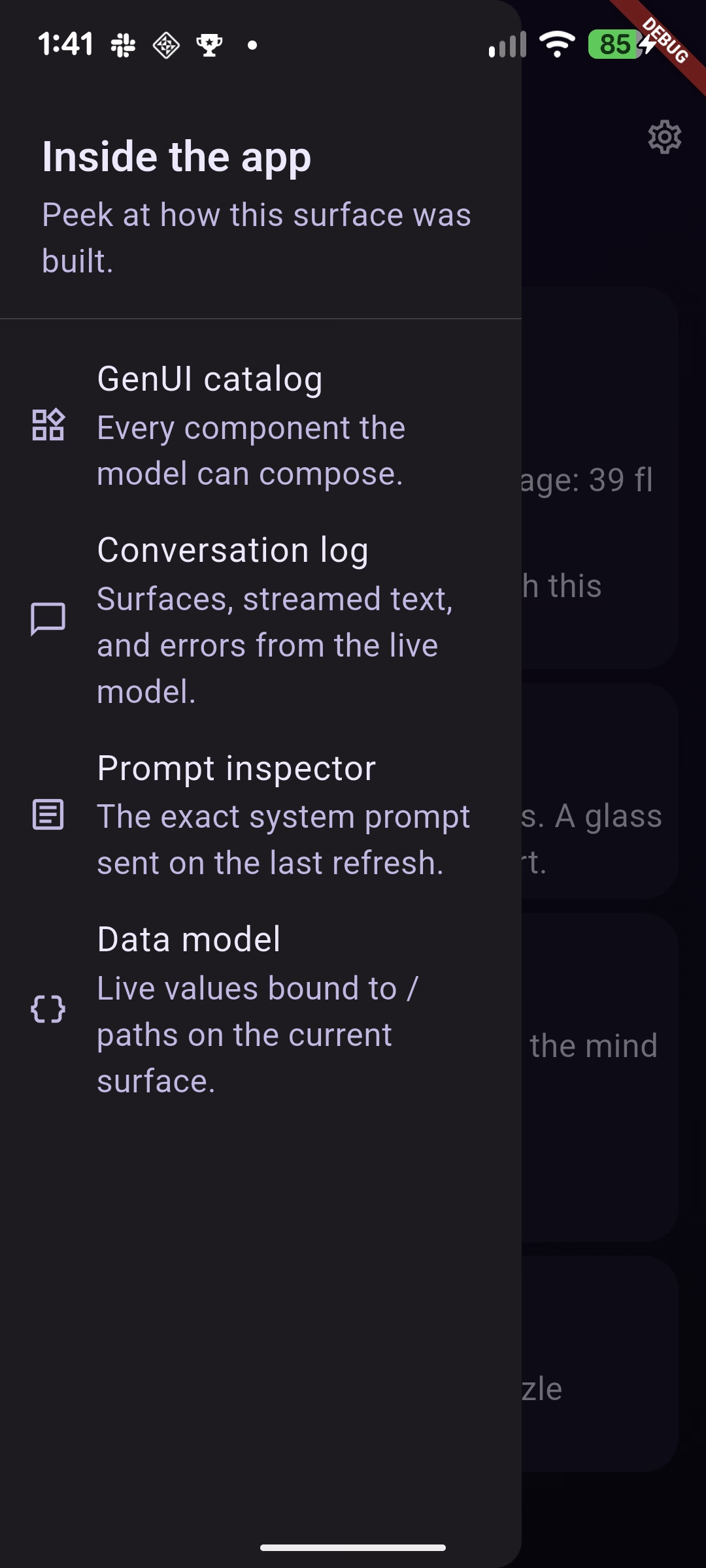
When we built genui_demo, we wanted a first-class way to see what was happening at each layer. The drawer labeled “Inside the app” isn’t a debug mode hidden behind a build flag. It’s a feature, always on, because one of the app’s goals is to teach how GenUI works. Four pages, one per concept, each tied to something earlier in this post.
GenUI catalog
The first drawer entry lists every catalog item the model is allowed to compose, rendered with its own example payload. It uses DebugCatalogView from the genui package, so the page updates automatically the moment you register a new CatalogItem in AppCatalog.build(). When you’re wondering “does the model know about this widget yet?”, this page is the answer. It’s also where the exampleData you wrote in Step 1 earns its keep — the card for each item shows exactly what Gemini sees when it’s deciding whether to use your component.
Conversation log
Every event the live Conversation emits lands here: surfaceAdded, componentsUpdated, surfaceRemoved, streamed text chunks, waiting states, and errors. Entries are newest-first and tap to expand. This is the page that makes the streaming behavior from Step 2 visible. You can watch Streamed text entries arrive in real time as Gemini composes, then see Surface added fire when the first createSurface chunk lands. On follow-up turns it’s usually Components updated, which confirms the createAndUpdate policy from Step 4 is doing what we asked.
Prompt inspector
The exact system prompt the app sent on the most recent refresh. The page shows:
- Capture time and character count
- The user message that kicked off the turn
- Each labeled fragment (
PERSONA,USER_PROFILE,HEALTH_CONTEXT,DATA_PATHS,SURFACE_UPDATES, and the others) with its own Copy button - The full joined prompt, monospace, at the bottom
This is the single most useful page for tuning behavior. When the model makes a surprising choice, the prompt inspector tells you exactly what it saw when it made it. Tweak a fragment in the cubit, refresh, and compare the new capture side-by-side with the old one.
Data model
A live view of the active surface’s DataModel, which is the shared path tree from Step 3. Every known path gets a row with its current value, description, and source. Below that, the raw JSON tree prints every key the surface currently contains, updated in real time.
When a note is captured and LiveDataStore.refresh() runs, /today/captures_count ticks up on this page without any reload. That’s bindExternalState working in public. Any widget the model renders with BoundString or BoundNumber on the same path is reacting to the same values you’re watching here.
The four pages line up with the four steps in this post. Catalog to Step 1. Conversation log to Step 2. Prompt inspector to the system prompt you build before handing it to the service. Data model to the paths you bind in Step 3. If you fork the repo and add one of your own catalog items, one data path, or one interaction handler, the drawer is where you’ll watch your change light up.
Make it your own
Fork the repo, drop your Gemini API key into Settings, and run it. Then try this progression.
Add a catalog item. Pick something small: a badge, a streak card, a single-stat tile. Write the schema, write the builder, add a rule fragment that tells Gemini when to reach for it. Watch Gemini pick it up on the next refresh.
Add a data path. Expose a value from your app with bindExternalState. Ask Gemini to render it in a Text widget. Watch it stay in sync.
Add an interaction. Give a Button a new event name, route it in onInteraction, and persist something. Teach Gemini about it in a prompt fragment.
Each step is independently useful, and each one strengthens the mental model. The catalog is your vocabulary. The surface is your canvas. The data model is your shared state. Interactions are your write path. Get those four right and GenUI stops feeling like magic and starts feeling like a platform you build on.