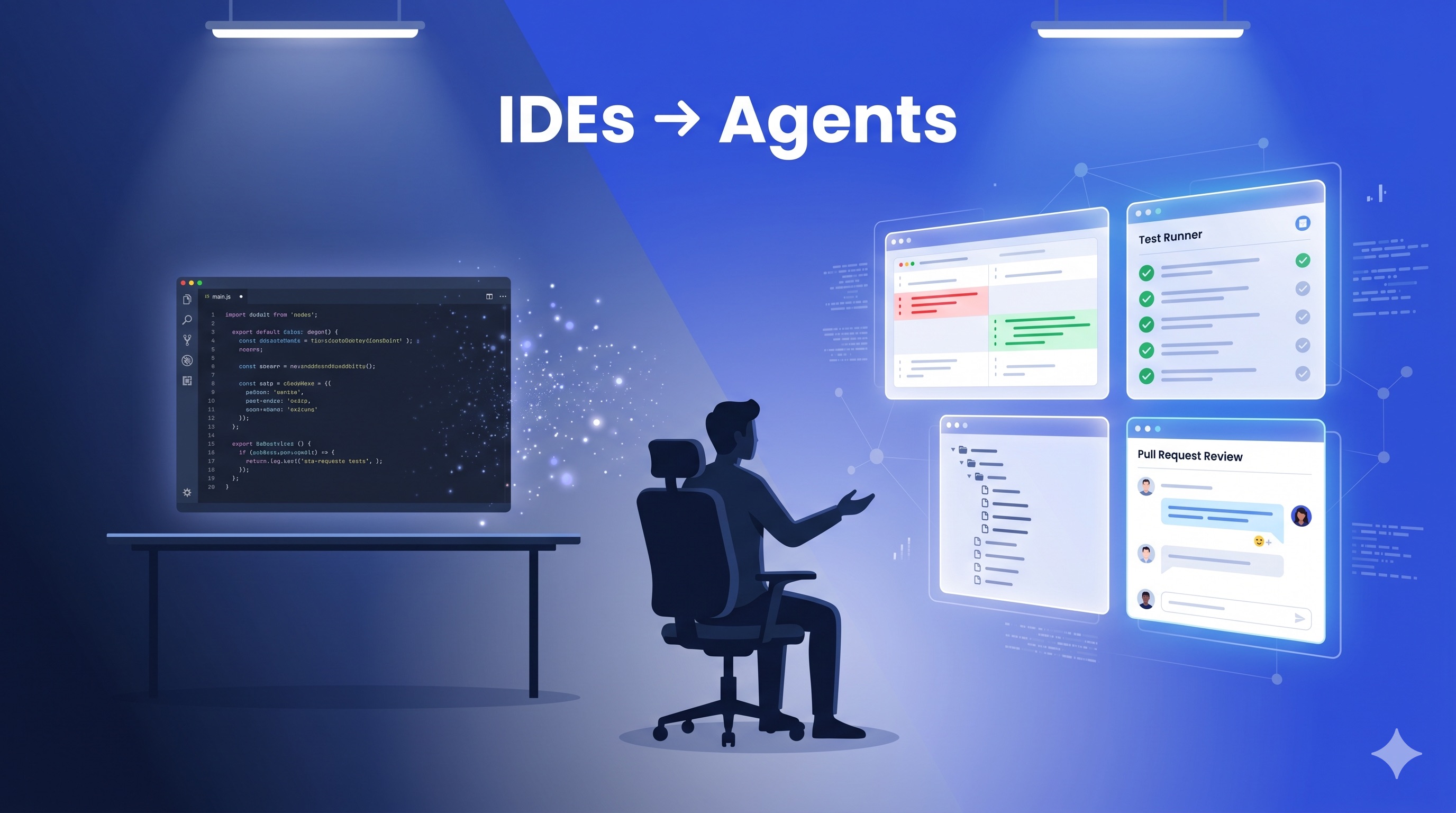
Not long ago, AI-assisted development meant autocomplete. An AI suggesting the next line, filling in function bodies, offering inline completions. The editor was the center of everything. You wrote code, and the AI helped you write it faster.
That model is fading.
In 2026, the question developers ask their tools has changed. It went from “help me write this function” to “build this feature while I review another PR.” The tools that matter now are not the ones that complete your code. They are the ones that take over the typing entirely and let you focus on architecture, review, and direction.
This shift built up gradually. Before we get into Claude Code Desktop specifically, it helps to understand the landscape that led here.
The Rise of Agentic Development
From Autocomplete to Orchestration
The evolution happened in three waves.
Wave one: inline completions. AI lives inside your editor as an extension. It watches what you type and suggests what comes next. You stay in full control. The AI is a faster autocomplete. This is where most developers first experienced AI-assisted coding.
Wave two: AI-native editors. Tools forked VS Code and built AI deeper into the editor. Chat panels, multi-file edits, codebase-aware context. The AI could do more, but the editor remained the center of the experience. You were still driving.
Wave three: agentic environments. The editor stops being the center of anything. The agent reads your codebase, reasons about architecture, writes code, runs tests, creates branches, and opens PRs. You direct and review. This is where Claude Code started as a terminal-first agent, and where Claude Code Desktop now picks up the story.
A majority of developers now use AI coding tools, and major players across the industry are pivoting from editors to agent orchestration platforms. The question is no longer whether development becomes agent-first. It is what the interface for managing agents should look like. That is the question Claude Code Desktop tries to answer.
The Key Distinction
Two paradigms have emerged.
Agentic IDEs. AI bolted onto an editor. Developer-directed, step by step. Single agent, sequential execution. The human is involved at every step.
Agentic Development Environments (ADEs). Built ground-up for agents. Goal-based, multi-agent, parallel execution in isolated environments. The human sets direction and reviews results. Claude Code Desktop falls in this category.
Once a task touches 10+ files, spans multiple packages, or requires 3+ parallel agents, the ADE model fits better than an agentic IDE. In practice, most developers use both. IDE extensions handle the quick, in-context moments. Agent tools handle the bigger tasks you want to hand off entirely.
Why Worktrees Matter
Parallel agents need git worktrees. The reason is straightforward: an AI agent that edits files needs isolation. Two agents running in parallel cannot both write to the same working directory. They will step on each other’s changes and create merge conflicts mid-task.
Git worktrees solve this by checking out multiple branches of the same repository simultaneously, each in its own directory. Every agent gets its own workspace. They read, write, run tests, and commit independently, all without touching your main working tree.
Claude Code has supported worktrees from the start with its built-in /worktree command. At VGV, we’ve seen teams go from single-agent workflows to running four or five agents in parallel, each working on a different feature branch. Our Wingspan agentic engineering workflow leans heavily on this pattern. The experience is closer to managing a small distributed team than pair-programming with a chatbot.
Without worktrees, you are limited to one agent, one task, one branch at a time. With them, you can kick off three agents on three separate PRs and keep working on your own thing. Claude Code Desktop makes this pattern more visible than the terminal ever could.
The Developer’s Role Is Changing, Not Disappearing
These tools do not remove the need for engineering judgment. They make that judgment the primary thing you contribute. Agents handle the typing, the boilerplate, the repetitive patterns. Code design, architecture decisions, and enforcing project conventions remain your responsibility.
The developers getting the most out of agentic workflows are the ones who treat the agent as a capable executor while they focus on direction, review, and the decisions that require context no model has yet.
That framing brings us to the tool we have been testing.
Claude Code Desktop: Hands-On
What It Is
Claude Code Desktop is Anthropic’s standalone app for Claude Code. The same AI-powered coding agent that previously lived in the terminal, now with a native desktop experience. Instead of managing agent sessions through tmux panes and terminal tabs, you get a purpose-built UI for orchestrating multiple coding agents at once.
The feature set covers a lot of ground. A sidebar manages all active and recent sessions with filtering by status, project, or environment. A built-in terminal lets you run tests and builds alongside your agent sessions. An in-app file editor handles quick changes. A redesigned diff viewer is optimized for large changesets. A preview pane supports HTML, PDFs, and local dev servers. Drag-and-drop layout customization lets you arrange your workspace. A side chat (⌘ + ;) lets you branch conversations without derailing the main thread.
First Impressions
If you have been using Claude Code in the terminal, Claude Code Desktop does not give you new capabilities. The underlying agent, the MCP integrations, the worktrees, the skills: it is all the same engine.
What changes is the surface. If you have ever tried to build an editor-like experience around your Claude Code terminal by splitting panes, using tmux to monitor sessions, and switching between diffs and logs, Claude Code Desktop is Anthropic packaging that up into a proper app. Slash commands become buttons. Diffs render inline with a proper viewer. Session management moves from your head to a sidebar with real status indicators.
For developers already comfortable with the terminal, the value is convenience, not capability. For developers who found the CLI intimidating or wanted a more visual way to work with coding agents, it lowers the barrier to entry.
What Works Well
Session status visibility. Each session shows a clear indicator of its current state. Is the agent running? Does it need your attention for a decision? Has it finished and created a PR? When you run multiple agents in parallel, this matters. You glance at the sidebar, see that two sessions are progressing, one needs a quick approval, and one already has a PR ready for review. You never have to click into each session to check.
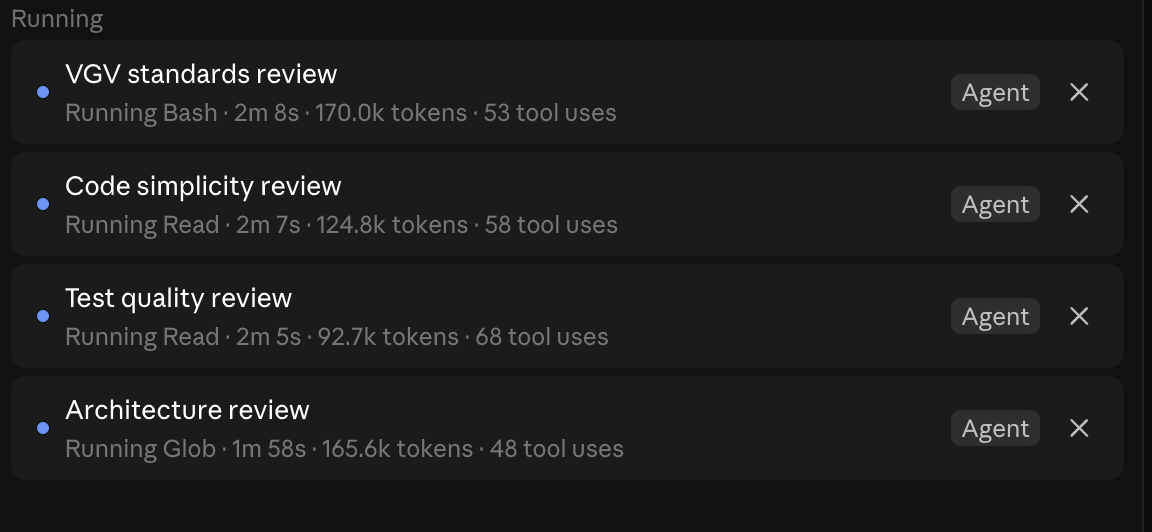
Parallel agent monitoring. The experience works well when running multiple sub-agents within a single session. In the screenshot below, four review agents (VGV standards, code simplicity, test quality, and architecture review) run simultaneously. Each one shows its current operation, elapsed time, token usage, and tool call count.
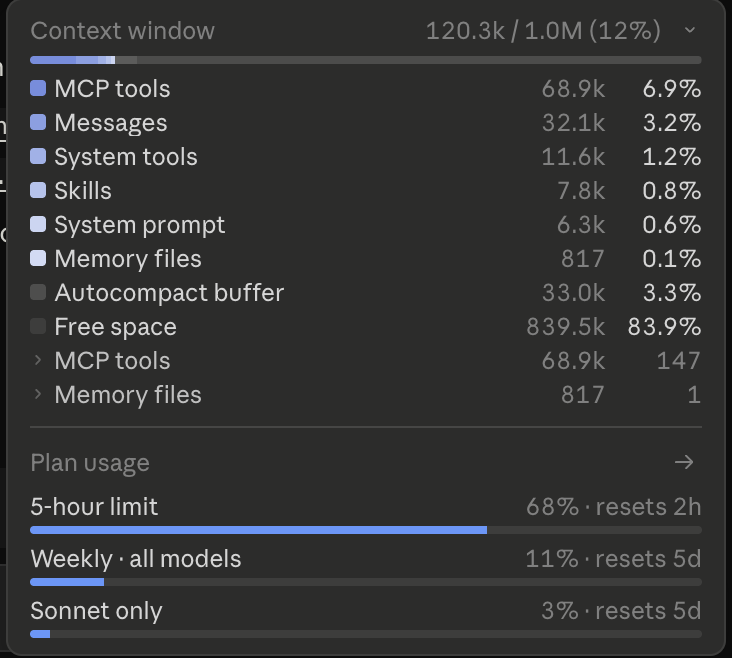
Context window and usage visibility. The usage panel breaks down what consumes your context window: MCP tools, messages, system tools, skills, system prompt, memory files, autocompact buffer, and free space. Each category shows token counts and percentages. You can spot an MCP server bloating your context, see how close you are to your 5-hour rate limit, and decide when to compact or start a fresh session.
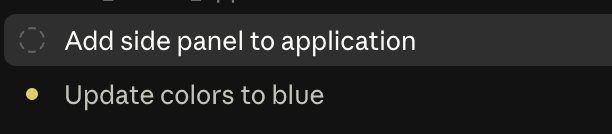
Plan and task windows. Plans and background agent tasks open as separate windows. Instead of scrolling through terminal output, you get a dedicated view into the agent’s plan and the tasks it executes. This is useful when reviewing what an agent is doing before approving a larger change.
Built-in terminal. Having a terminal inside the app removes one of the main reasons to switch away. You can run tests, check build output, or inspect logs without leaving the context of your agent session. It sounds minor, but when you are reviewing an agent’s changes and want to verify something quickly, not having to switch windows keeps you focused.
Side chat. The side chat (⌘ + ;) lets you branch off a quick question without interrupting the main session thread. If the agent is mid-task and you want to ask something unrelated, you open a side chat instead of derailing the conversation. It keeps the main session focused.
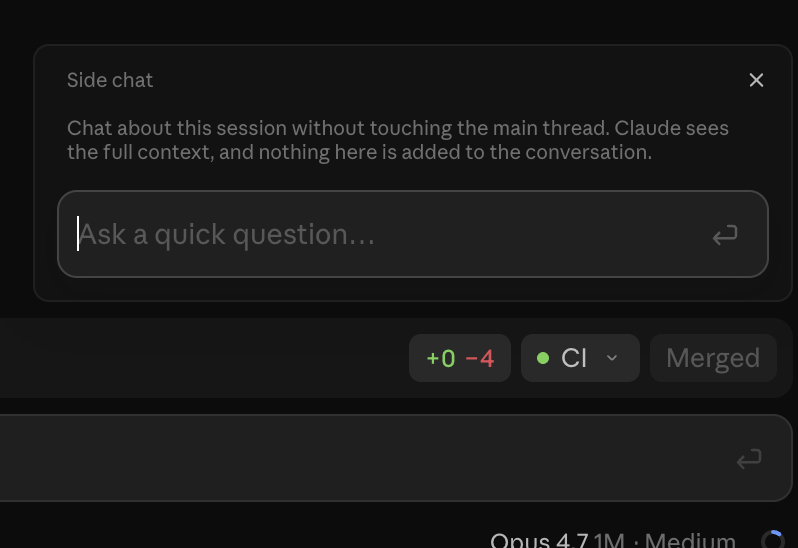
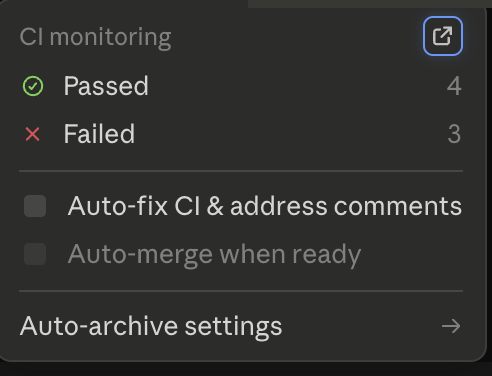
PR controls. Once a session creates a PR, controls appear at the top of the session that let you address review comments or check whether CI is passing. You stay inside Claude Code Desktop instead of switching to GitHub. For teams that move fast between agent output and PR review, this keeps the loop tight.
Claude Code Best Practices We’ve Kept
Moving from the CLI to the desktop app does not change the habits that make Claude Code effective. The same practices apply. Keep sessions narrowly scoped to a single task. Use worktrees to isolate parallel work. Review plans before approving execution. Watch the context window and compact early rather than late. Let the agent write tests alongside the code it generates. The desktop app just makes each of these easier to see and act on. If anything, the visibility nudges the team toward better defaults — the usage panel makes context bloat obvious in a way the terminal never did.
What Could Be Better
Diff viewer gaps. The built-in diff viewer handles code well, but it does not support everything. Images do not render in the diff view. If an agent adds or modifies an image file, you see the path changed but cannot preview what it looks like. There is also no way to preview files directly from the diff. When you are reviewing a blog post or a UI change that includes assets, you still need to open a separate tool to see the full picture. For a desktop app that aims to keep you in one place, these gaps send you back to your file browser or IDE more often than expected.
Limited git controls. Most git operations are left to the agent. That works for simple commits and branches, but not every workflow wants the agent driving git. Sometimes you want to stage specific hunks, amend a commit, or rebase manually without writing a prompt for it. Surfacing common git actions as buttons or shortcuts would give teams more control over the parts of the workflow they do not want to delegate.
Customizable action buttons. The desktop app ships with built-in buttons like “create PR” that trigger Anthropic’s own skills. There is no way to swap those for your own. At VGV we have a custom create-PR skill with our own commit conventions, PR template, and review checklist. Being able to wire that into the same button instead of running it as a separate command would make the app feel like ours, not just Anthropic’s.
Side panel organization. The separate plan and task windows work in isolation, but the layout breaks down at scale. Every panel opens to the side. After two or three are open, the screen gets cluttered. You spend time managing windows instead of reviewing agent output. These panels are also scoped per session. When running several sessions, you end up with overlapping panels and no clear way to navigate between them. A tabbed or docked layout would improve this.
Final Thoughts
Claude Code Desktop is a solid first version of what feels like an inevitable direction. The industry is moving from editor-first to agent-first, and every tool needs an answer to one question: how do I manage multiple agents working on my codebase at the same time?
Anthropic’s answer is a dedicated app with session management, status indicators, built-in diffs, and a layout system. It does not add new capabilities over the CLI. It adds accessibility. For a tool built around multiplying developer output, making it easier for more developers to use is a meaningful step.
Session creation needs fewer clicks. The side panels need better organization. Power users of the CLI will not find new capabilities here. But the app makes parallel agent workflows more visible and more manageable.
At VGV, we have been using Claude Code as part of our daily engineering workflow for months. The desktop app does not change what we can do. It changes how approachable those workflows are for the rest of the team. That matters.